EHTracker/Making a New Torrent: Difference between revisions
mNo edit summary |
→Create a New Torrent File: Added an image illustrating the location of the EHTracker announcement URL |
||
| Line 18: | Line 18: | ||
# Using the tool, select the bundle of files you wish to turn into a torrent for your chosen gallery. | # Using the tool, select the bundle of files you wish to turn into a torrent for your chosen gallery. | ||
# In the "trackers" field (which may be named something similar but not identical in your chosen torrent client), paste the customized EHTracker announcement URL unique to your chosen gallery. This is most quickly found at the bottom of the "Torrent Download" pop-out window for a given gallery. | # In the "trackers" field (which may be named something similar but not identical in your chosen torrent client), paste the customized EHTracker announcement URL unique to your chosen gallery. This is most quickly found at the bottom of the "Torrent Download" pop-out window for a given gallery. [[File:EHTracker URL.png|250px|thumb|right|This is where the unique EHTracker announcement URL for a gallery is located on the the "Torrent Download" pop-out window.]] | ||
===Upload the Torrent File=== | ===Upload the Torrent File=== | ||
Revision as of 07:35, 30 May 2023
This is a step-by-step guide explaining how to create a new torrent for a gallery using EHTracker.
Getting Started
Get a Torrent Client
A torrent client is a program which allows someone to interact with torrent files and the BitTorrent ecosystem in various ways. There are many torrenting clients available for various operating systems. Most of these clients will allow you to make a torrent file (an ability necessary to follow this guide).
Find a Gallery
There are several reasons why someone might want to make a torrent for an E-Hentai gallery. Many galleries which lack an associated torrent. These gallery cannot be downloaded via torrenting, unless a torrent is created for them. Additionally, some galleries may have torrents that are insufficient in some way (e.g. undersized images, images out of order, lacking additional non-image content, etc.).
Composing the Files
Making the Torrent
Create a New Torrent File

Once you have your bundle of files, return to your torrent client of choice. Somewhere in the client will be a tool for creating new torrent files; open this tool.
- Using the tool, select the bundle of files you wish to turn into a torrent for your chosen gallery.
- In the "trackers" field (which may be named something similar but not identical in your chosen torrent client), paste the customized EHTracker announcement URL unique to your chosen gallery. This is most quickly found at the bottom of the "Torrent Download" pop-out window for a given gallery.
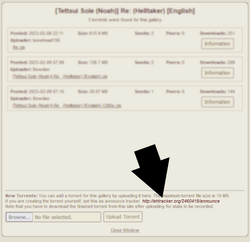
This is where the unique EHTracker announcement URL for a gallery is located on the the "Torrent Download" pop-out window.


